
Written by the GamingMuzz team. Last updated: October 20, 2026
This guide is based on Nintendo’s official support pages, its patch notes, and outlet reports. We did not test each fix on a console ourselves.
Your TV stays black while the dock light glows, right when you sit down to play. That’s when the panic starts. Hold off, though, because plenty of Nintendo Switch 2 problems have a fix in Nintendo’s own support pages.
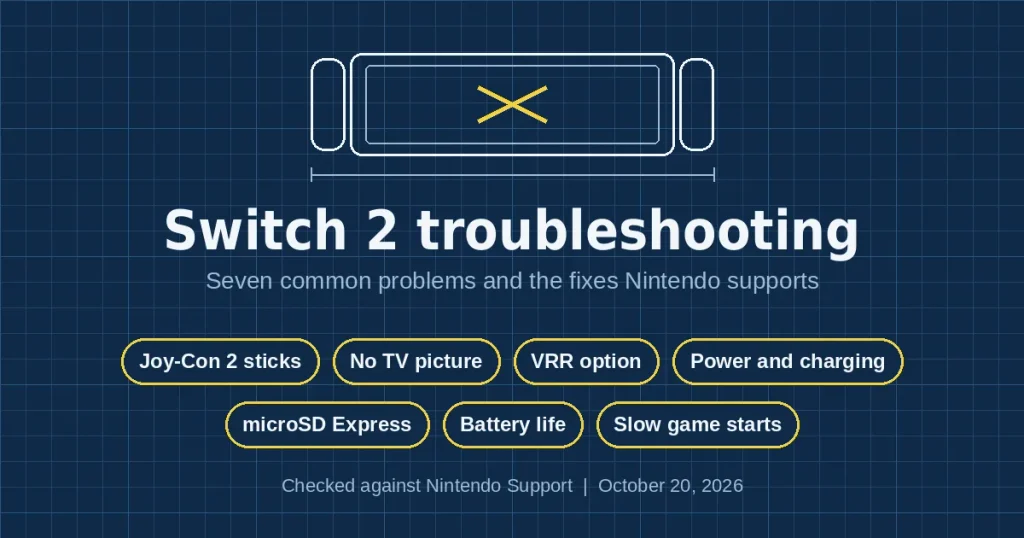
This guide lists seven common troubles in the order you should try fixes. Confirmed steps come first, and unconfirmed reports sit in their own section. As of October 20, 2026, the newest system version is 23.0.1.
Key Takeaways
- Update the console first. Version 23.0.1 is current and fixes slow game starts.
- Use the right power gear. Nintendo says the original Switch adapter can’t run the dock.
- Game storage needs microSD Express. Regular microSD cards won’t do the job.
- Calibrate sticks only when something is wrong, and do it before any repair request.
- Treat card-failure stories after updates as unconfirmed until Nintendo comments.
Which Nintendo Switch 2 problems does Nintendo document?
Quick answer: seven troubles have clear official steps. Restart the console and install any update first. Then match your symptom in the table.
| Symptom | First thing to try | Where it comes from |
|---|---|---|
| Stick moves on its own or feels sticky | Calibrate (clean around the stick first if it feels sticky) | Nintendo Support |
| No picture on the TV | Use the Switch 2 adapter and an Ultra High Speed HDMI cable | Nintendo Support |
| VRR option missing in TV mode | Update the console, then update the dock | Nintendo patch notes |
| Console won’t charge or start | Test the NGN-01 adapter on another Nintendo device | Nintendo Support |
| Card not recognized | Confirm it is microSD Express, then reseat it | Nintendo Support |
| Short battery life | Compare it with Nintendo’s 2 to 6.5 hour estimate | Nintendo specs |
| Games start or close slowly | Install version 23.0.1 | Nintendo patch notes |
Table checked October 20, 2026.
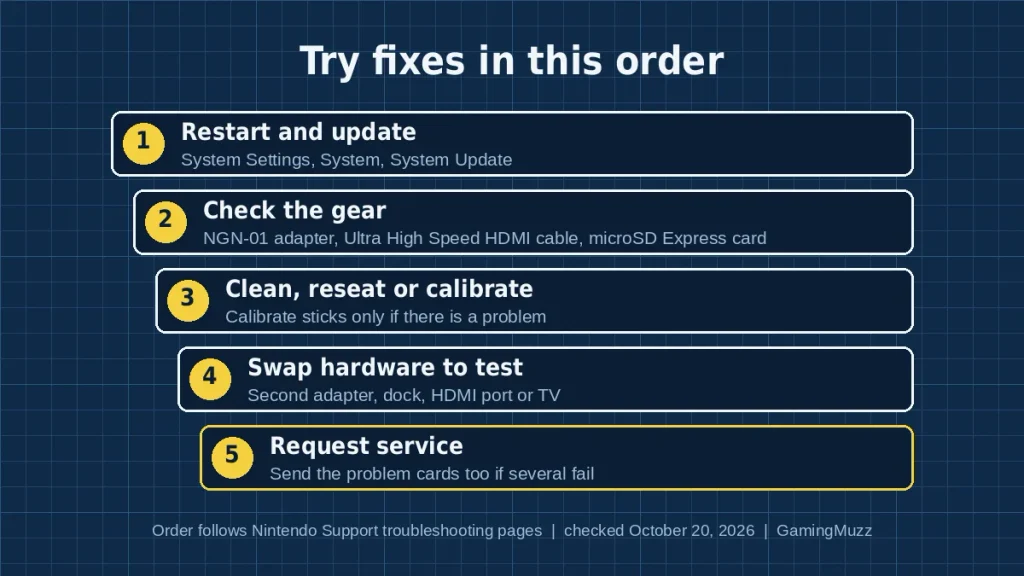
Nintendo’s pages usually follow one pattern. Update first, check the accessories, clean or calibrate, test other gear, then ask for service.
My read: that order saves money, because the early steps cost nothing.
Hardware trouble comes first, so start there
Hardware symptoms scare people most. They’re also where Nintendo’s steps are clearest.
Nintendo Switch 2 problems with Joy-Con sticks
Say a stick drifts or feels dead. Nintendo’s page starts with a simple check: has the stick input been remapped? A wrench icon beside the controller, bottom left of the screen, means yes.
If so, switch back to standard input while you test. Next, remove any skins or covers. Then calibrate under System Settings, Controllers & Accessories, Calibrate Control Sticks.
Nintendo warns against calibrating without a reason. Also, games with motion or tilt controls can make a healthy stick look broken.
Does the stick feel sticky or slow to spring back? Power off the console first.
Yes, a toothbrush. Nintendo says to brush around the stick with a clean, dry toothbrush, then wipe with a soft cloth. Calibrate again after that.
If calibration fails, Nintendo says the Joy-Con 2 needs repair.
My read: Joy-Con 2 drift deserves watching, since the original Switch burned everyone. Still, I found no solid data showing a widespread failure, only individual reports.
Region note: repair terms vary by country. I couldn’t confirm one worldwide free-repair rule for the new controllers. Check your local Nintendo support page before you pay.
Black screen on the TV
Docked and still dark? Boring answer first: follow Nintendo’s blank-screen guide in this order.
- Turn off the TV, unplug every cable from the dock, and unplug the AC adapter for 30 seconds.
- Plug the adapter into the console and a wall outlet. Confirm handheld mode works, then install the latest update.
- Check your gear: the Switch 2 AC adapter (NGN-01), the dock, and an Ultra High Speed HDMI cable.
- Plug the Switch 2 dock into the wall, not a power strip. Connect HDMI straight to the TV, and remove sound bars or adapters for now.
- Take off any protective case, then dock the console.
- Still dark? Check the TV input and lower the console’s TV resolution. Then try another HDMI port, cable, TV, or dock.
The original Switch adapter charges the console directly, but it can’t run the dock or TV mode. Nintendo also says an adapter should support at least 54W. If a second dock works, only your first dock needs service.
Nintendo Switch 2 problems with charging and power
Won’t charge or won’t start? Take the console out of the dock first.
Then read the adapter label. NGN-01 means it’s the Switch 2 adapter.
Next, plug that adapter into another Nintendo USB-C device, such as the Pro Controller. If it powers that device, the adapter works. Try a second adapter if you own one.
Nothing helps? Nintendo says the console needs service.
microSD Express card not recognized
Nintendo says Switch 2 is only compatible with microSD Express. A regular card from an older Switch can’t save or load digital games or save data. That’s per Nintendo’s support article.
Here’s Nintendo’s order for a card that won’t show up.
- Power off the console and remove the card.
- Confirm it’s the right card type.
- Check the slot and the card’s pins for dirt or debris.
- Format the card. That erases everything on it.
- Replace the card if the console still can’t read it.
If several cards fail, Nintendo says the console needs repair. Send one or more of the problem cards along for testing.
Battery life: normal dip or real fault?
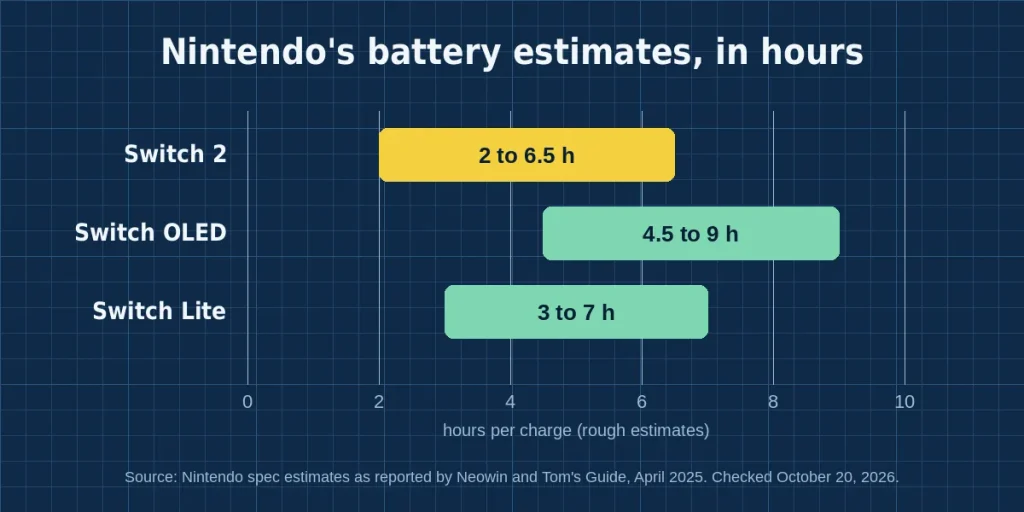
Nintendo rates the console at roughly 2 to 6.5 hours per charge, depending on the game. The 5220mAh battery takes about three hours to charge in sleep mode, per Nintendo’s specs as reported by Neowin. Nintendo calls these rough estimates.
| Console | Nintendo’s estimate (hours) |
|---|---|
| Switch 2 | 2 to 6.5 |
| Switch OLED | 4.5 to 9 |
| Switch Lite | 3 to 7 |
So a short session on a demanding game can still sit inside Nintendo’s own range. Version 21.0.0 also updated a setting that stops charging around 80 to 90 percent. If your sessions feel short, check whether that option is on.
My read: Switch 2 battery life looks grim at the low end, but that’s Nintendo’s number for heavy games. Compare the same game before you call it a fault.
Software fixes land quietly, so check the patch notes
Nintendo has named more specific fixes lately, and that helps you a lot.
Nintendo Switch 2 problems after a system update
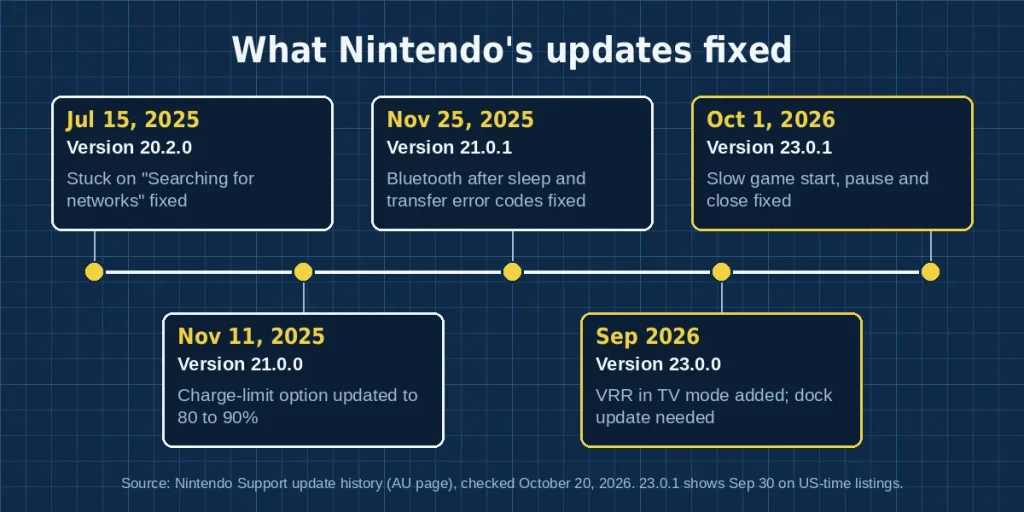
Version 23.0.0 arrived in early September 2026, on September 9 or 10 depending on region. It added VRR in TV mode and console-to-console transfers. Then some players saw software take a long time to start, pause, or close.
Nintendo confirmed that bug and fixed it in 23.0.1. Nintendo’s page lists that release as October 1, 2026, while US-time listings say September 30. As of October 20, 2026, it’s the latest version.
To update, open System Settings, scroll to System, then choose System Update. If the update fails, restart the console and try again, as Nintendo advises.
Older builds had named bugs too. Version 21.0.1 fixed wireless controllers and Bluetooth audio failing to connect after sleep or Airplane mode.
It also fixed repeating error codes 2011-0301 and 2168-0002 during a Switch-to-Switch 2 transfer. Meanwhile, version 20.2.0 fixed getting stuck on “Searching for networks.”
If you hit any of those, check your version first.
Why VRR needs a separate dock update
Per Nintendo, VRR in TV mode needs three things: game support, TV support, and a dock firmware update. The console update alone isn’t enough.
Outlet guides describe the steps like this. Dock the console, install the latest update, then open System Settings, System, Dock Update, and choose Begin Update. If the update stops, run it again.
Then check Display settings. Nintendo renamed “Dock Output Information” to “Video Output Information” and added VRR settings there. One outlet guide also suggests switching on VRR in your TV’s own menu for that HDMI input.
Reported but unconfirmed: keep these in perspective
Everything above comes from Nintendo’s own pages. The items below are reports only.
Unconfirmed reports (checked October 20, 2026)
- Some microSD Express cards flagged as incompatible after version 22.0.0 (March 2026). Reddit users reported it, and Notebookcheck covered it. Most reports named 1TB PNY cards. GameGeeker said PNY hadn’t reproduced the problem. Nintendo’s later patch notes, from 22.1.0 through 23.0.1, don’t list a fix. Status: unconfirmed.
- Free Joy-Con 2 repairs after the warranty ends. Outlets describe different rules by region, and I couldn’t match them to one Nintendo statement. Status: unconfirmed.
My read: if a card suddenly shows as incompatible, hold off on formatting while games sit on it. Formatting wipes the card, so contact Nintendo support and the card maker first.
Update note: we’ll revise this guide if Nintendo confirms or fixes the card reports.
When Nintendo Switch 2 problems mean it’s service time
Stop troubleshooting when Nintendo’s own steps run out:
- A stick that can’t be calibrated, or one that misbehaves while the controller registers correctly.
- A console that won’t charge with a second adapter.
- A TV that stays dark after you test another dock and another TV. Nintendo then wants the console and dock serviced.
- Several cards that the console can’t read, even after a format.
Nintendo runs an online service request process. Warranty length and repair terms differ by country, so use your local Nintendo support site.
Four mistakes that waste your evening
- Using the old Switch adapter with the dock. It charges the console directly but can’t power TV mode.
- Calibrating “just in case.” Nintendo says to calibrate only when there’s a problem.
- Formatting before you check the card type. Formatting erases the card.
- Blaming the console for a game bug. Bethesda patched Oblivion Remastered on Switch 2 on October 13, 2026. The patch fixed blur and ghosting after Update 1.1, Nintendo Life reported. Read the game’s patch notes before you reset anything.
How I checked these Nintendo Switch 2 problems
I started with Nintendo’s support pages and its system update history. Then I compared coverage from Nintendo Life, Notebookcheck, Neowin, Tom’s Guide, and others.
Where one outlet or one user post carried a claim, I labeled it reported. Where outlets disagreed, I said so or left the claim out.
I haven’t handled every fix on a console, so this is source-based guidance. I checked the facts on October 20, 2026.
Quick answers
Can I use my old Switch charger? Yes, plugged directly into the console. No, with the dock or TV mode, according to Nintendo.
Do regular microSD cards work? Nintendo says Switch 2 is only compatible with microSD Express.
How do I update the dock? Dock the console, install the latest system update, then open System Settings, System, Dock Update, and choose Begin Update.
Should I calibrate sticks right away? No. Nintendo says to calibrate only when there’s a problem.
What’s the newest system version? Version 23.0.1, as of October 20, 2026.
Bottom line
Nintendo Switch 2 problems feel scary on a bad night. The official fixes are mostly dull, though: update, use the right gear, clean or calibrate, then ask for service. Work through them in that order, and you’ll save money and a few bad evenings.

![Gears of War E-Day MegaLights: A Stunning [Ultimate] Guide](https://gamingmuzz.com/wp-content/uploads/2026/10/image-46-150x150.webp)